Designer
The visual editor: canvas, bands, elements, tables, data binding, expressions, preview, publishing and shortcuts.
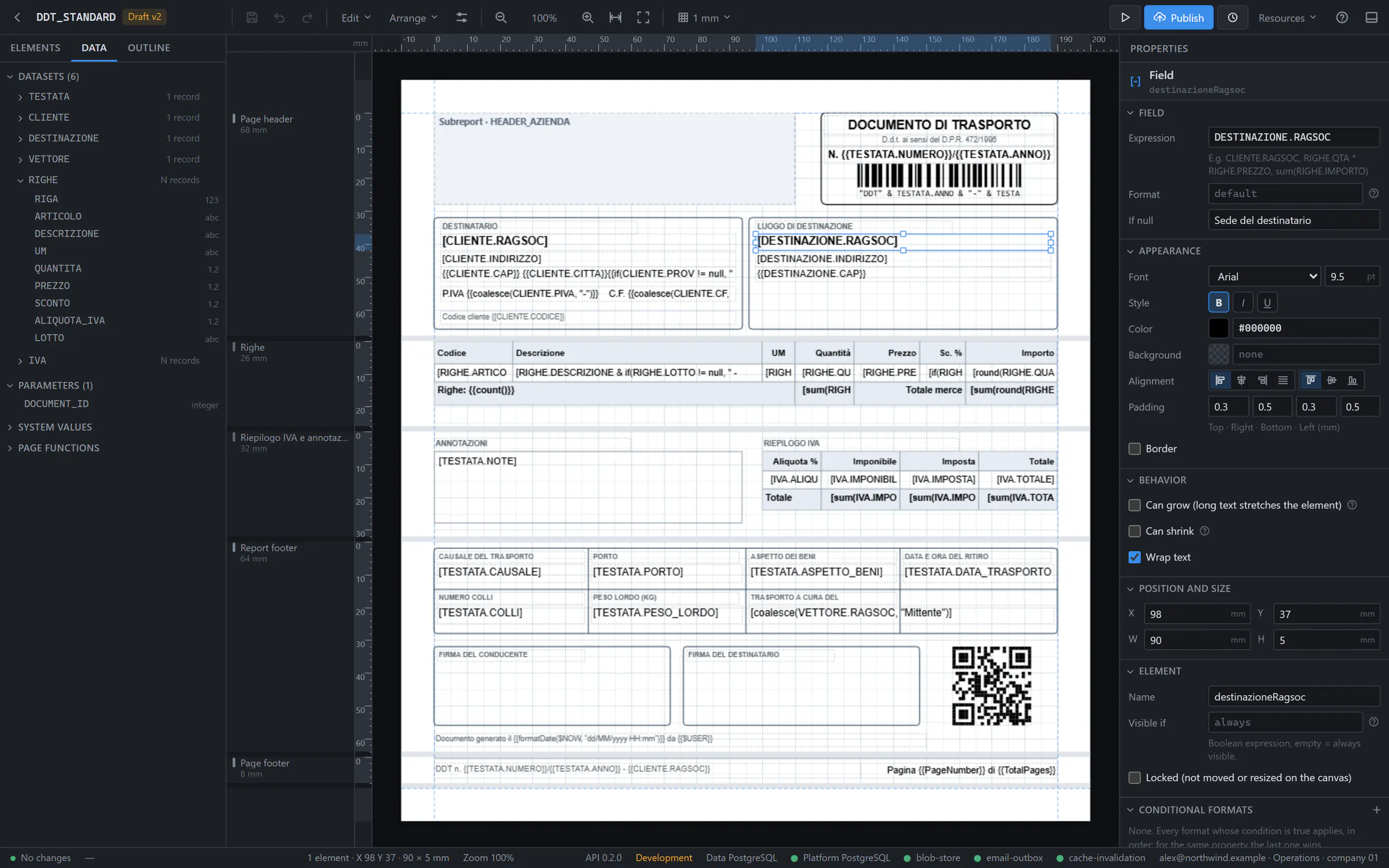
The Designer is the visual editor of Prynt: you lay out bands in millimetres, bind them to SQL datasets, check the result with a real PDF and publish versions. The preview is produced by the same engine that renders documents through the API, so what you see there is exactly what your applications receive.
Opening the Designer
- In Templates, choose New template (format, code, description, document type; for a label also the resolution and the size) and Create and open, or open an existing template by its name.
- The Designer opens full screen at
/{organization}/{workspace}/designer/{id}in the language of your account (English or Italian). The arrow at the top left goes back to the list. - What you can do depends on your role:
templates.writeto edit drafts (designers and above),sql.executeto run and edit queries andtemplates.publishto publish (developers and above; designers request the publication). Commands you cannot use are hidden or disabled, with the missing permission in their tooltip.
The editor at a glance
Toolbartop- Save, undo and redo, Edit and Arrange menus, page setup, zoom, grid, Preview, Publish, Versions, Resources and Help.
Left paneltabs- Elements (the toolbox), Data (datasets, fields, parameters, system values) and Outline (the tree of bands and elements).
Canvascenter- The page at real scale with rulers in millimetres and the bands stacked in print order.
Propertiesright- The properties of the selection; with nothing selected, those of the page and the report.
Bottom panelCtrl+J- Datasets (SQL editor), Parameters, Relations, Translations, Problems and Output.
Status barbottom- Save state, pointer position in mm, selection, zoom, version, environment and your role.
You always edit the draft (badge Draft vN). A published or archived version opens read-only, with Create draft from vN.
Canvas
- Zoom from 25% to 400% (Ctrl+wheel around the pointer, Ctrl++ / Ctrl+-, Ctrl+0), or Fit to width / Fit to page. Pan with Space+drag, the middle button or the scroll bars.
- Grid and guides: show the grid (Ctrl+'), snap to it with a step of 1, 2, 5 or 10 mm, smart guides that align to the edges and centres of other elements, element outlines. Hold Alt while dragging to turn snapping off.
- Select with a click, Shift/Ctrl+click or a box on an empty area; move by dragging (also into another band) or with the arrow keys; resize with the eight handles (Shift keeps the proportions).
- Arrange: align left, centre, right, top, middle or bottom (two or more elements), distribute (three or more), change the order, lock. The same commands are in the right-click menu.
- Drag the bottom edge of a band to change its height; double-click it to fit the content.
The canvas is an approximation, especially for fonts: the preview is the truth.
Bands and data regions
The Outline tab shows the tree of bands, regions and elements (hide an element on the canvas, lock it, reorder body sections). Its Add menu adds the report and page headers and footers, a static band in the body, or a data region, which repeats its detail band for every record of a dataset.
- Band properties: height, background, Visible if, Print on (page headers and footers: all pages, first only, all but the first, last only, all but the last), can grow, can shrink, don't split across two pages, new page before or after.
- Data region: dataset, relation (inside another region), filter, sort, repeat the header on every page; header, footer and No data bands; groups with a key expression, group header and footer and page break after each group. Records must be sorted by the group key.
- Nested regions (orders → lines → sizes) use a relation defined in the Relations panel.
Elements
Click an element in the Elements tab to add it to the selected band, or drag it where you want it.
Texttext- Fixed text with embedded expressions: Customer: {{CUSTOMER.NAME}}. Font, color, borders, padding, alignment, can grow.
Fieldexpression- A value with a format and an if-null text: CUSTOMER.NAME, sum(LINES.AMOUNT).
Imageasset · expression- A logo from the workspace assets (PNG, JPEG, BMP) or a binary field; fit, fill, stretch or original size.
Line, Rectangleshape- Separators and boxes: stroke width, color, dashes, fill, corner radius.
Tabledataset- Header, detail and footer rows bound to a dataset (below).
Barcodeexpression- Code 128, Code 39, EAN-13, EAN-8, UPC-A, ITF, Data Matrix, PDF417, with the text below.
QR codeexpression- Value and error correction L, M, Q or H.
Page number, Total pagestext- Page {{PageNumber}} of {{TotalPages}}.
Subreportcomponent- A Component template embedded in the band, such as a shared company header.
Every element has a name, position and size in millimetres, Visible if, a lock and conditional formats (a condition with color, background, bold, italic or hide: every true format applies, in order). With several elements selected, the panel edits their common properties.
Tables
A table iterates a dataset, with a relation and filter if needed. It has header rows, detail rows repeated for every record and footer rows for totals; columns with widths in millimetres; grid lines, alternating row backgrounds and a header repeated on every page. Click a cell to edit it: a text with {{ }} or an expression with a format, merged columns, font and alignment.
Dragging a field onto a cell binds it: the value in the detail, the field name in the header, the sum of a numeric field in the footer. Dragging a whole dataset onto the page offers Table with the fields of … or a data region.
Binding data
The Data tab
The Data tab lists the datasets with their fields and types, the parameters (Params.NAME), the system values ($DITTA, $USER, $LANGUAGE, $DATE, $NOW) and the page functions (PageNumber, TotalPages, RowNumber, GroupRowNumber). Drag a field onto a band to create a Field element, onto a cell to bind it, or into an expression.
The Datasets panel
- A list of datasets (add, enable or disable, reorder with Alt+↑/↓, delete) and, for the selected one, its code, data source, cardinality (1 record or N records), source (SQL, Function or Shared), timeout and the maximum rows of a test.
- The database explorer of the dataset's data source: tables, views and routines with their columns; insert a
SELECTor a name with a double-click. - The SQL editor highlights the dialect, suggests schemas, tables, columns and
:PARAMETERS(Ctrl+Space) and marks database errors at their line. - Query parameters lists the bind variables as you type and where each value comes from (a parameter, a system value, a constant); Create parameter adds a missing one.
- Run (Ctrl+Enter) shows the rows with their types; Refresh fields stores the detected fields in the dataset.
The concepts are in Datasets, Parameters and Data sources. Queries run against the connection of the environment chosen at the top of the application.
Relations and translations
- Relations: a parent dataset, a child dataset and the pairs of key fields; used by nested regions and tables and by totals of child rows.
- Translations: a grid of languages and keys.
{{t("DDT.TITLE")}}prints the text in the language of the render, or the key if it is missing.
Field catalog
The field catalog turns the fields of a template's datasets into names that people outside IT understand: a readable label (Customer company name, Document total, Lines → Quantity), an optional English label, a description, a format and an example value. It is prepared once by whoever writes the queries (members with datasets.manage: developers, admins, owners, or your software house) and published for the designers.
- Open the Field catalog tab of the bottom panel and choose Add fields from the datasets: every field gets a suggested label from its column name (
RAGSOC→ Company name) and a format from its type; ids and binary fields start hidden. - Formats: text, number with decimals, currency (EUR by default), date and date-time patterns, yes/no with your own texts. A field dragged by a designer gets the matching format (
#,##0.00 €,dd/MM/yyyy…). - Examples from the last test run fills the examples with the first row of each dataset's last test in the Datasets tab. Mark technical fields as Hidden.
- Save keeps a draft; Publish makes it visible to the designers; Withdraw hides it again. The catalog belongs to the template, not to a version: it stays valid when you publish new versions, and fields that disappear from the datasets are marked. Every change is in the template's audit trail.
No SQL in the catalog
GET/PUT …/templates/{id}/field-catalog, …/publish, …/unpublish) never returns queries, data sources or connection details.Designer mode for business users
Members with the designer role change layouts without touching data: they see the published field catalog instead of datasets, SQL, parameters and connections, and drag fields onto the page or into table cells. They change texts, logos and images from the assets, colors, fonts, the order of the columns of tables, and simple conditions with menus: Show if [field] [is greater than] [100]. Conditions written by a technician with other expressions appear as Advanced condition (set by the technician), read-only.
- Without a published catalog the designer sees a notice to ask the technician, and can still change the layout.
- A field used by the layout but missing from the catalog appears in Problems: The Total field is not connected: ask your software house.
- The server enforces it: designers receive definitions without SQL, cannot call the SQL IDE, dataset tests, the schema explorer, data sources or shared queries, and a save or preview that changes datasets, relations or parameters is refused with
DATA_CHANGE_NOT_ALLOWED. Previews with the template's own data work as usual. - The AI assistant of a designer works with the field catalog and cannot create or change datasets.
- Technicians can check the experience with Preview as designer in the toolbar.
Field names on the canvas
For designers, the canvas and the Outline show the names of the field catalog instead of the expressions: [Document total] instead of [TESTATA.TOTALE], also for the {{DATASET.FIELD}} placeholders inside texts. Technicians switch it with Field names instead of expressions in the Grid and guides menu of the canvas (the grid button in the toolbar). Only the display changes: the template still contains the same expressions.
Required fields and document lists
The ready-made templates of the sample gallery (delivery note, invoice, order confirmation, quote, packing list, account statement, price list, product sheet, GS1 shipping label, declaration) come with a published field catalog (Italian labels with the English translation), the list of their required fields (customer name, document number, line quantity, grand total…) already connected to the demo data, and lists of real documents for the preview. Cloning a template copies all of them.
Technicians (permission datasets.manage) adapt them to their own data in the Required fields and documents tab of the bottom panel:
- Required fields: connect each one, once, to a field of your datasets (fields of the catalog first, then every column). When you save, Prynt updates the references of the draft's layout for you, only where there is no doubt (a field still used by another required field is left alone). Fields still to connect, or connected to a field that no longer exists, are listed with a short explanation; designers see The required field X is not connected: ask your software house in Problems.
- Lists of real documents: for a parameter of the template (for example
DOCUMENT_ID), a name in Italian and English and a source: a lookup query (read-only, a singleSELECT; the optional:SEARCHbind is the text typed by the designer; by default it uses the data source of the template's first enabled dataset) or a dataset of the template. Then the value, label and detail columns and how many values to show (1–200, 50 by default). Try shows the list as designers will see it. - Writing a lookup query needs
sql.execute. Designers only ever see the names of the documents, never the query.
Expressions and formats
In fields and in the Visible if, filter, key and condition properties you write a bare expression; in texts, between {{ }}.
CUSTOMER.ZIP & " " & CUSTOMER.CITYjoin texts- & concatenates any value; + adds numbers.
round(LINES.QTY * LINES.PRICE, 2)calculation- Exact decimal arithmetic, rounding away from zero.
coalesce(DEST.NAME, CUSTOMER.NAME)fallback- The first value that is not null.
if(H.PORT == "FD", "Free", "Paid")condition- Compare with == and !=, never =.
H.NOTES != nullVisible if- Show an element only when there is a value.
sum(LINES.AMOUNT, "page")aggregate- Totals by report, region, group or page.
formatDate(H.DATE, "d MMMM yyyy")format- Also formatNumber(x, "#,##0.00").
t("DDT.TITLE")translation- The text of the key in the render language.
Texts go in quotes, comparisons between texts are case-sensitive, and numbers and dates without a format follow the render language (Italian: 1234,5 and 24/09/2026). A format on a field uses .NET format strings such as #,##0.00 or dd/MM/yyyy; an Oracle DATE always has a time, so give it a date format.
Preview with real data
Preview (F5) renders the real PDF with the engine, from the current definition, even unsaved, and the data of the environment chosen at the top. The parameters start from their test values (or defaults) and are kept while the editor is open; the PDF appears with its number of pages and the time, with Download the PDF and Open in a new tab.
When something fails, the preview says where: the SQL error with the dataset, line and position (Open the dataset), the expression with the element (Show element), the parameter, or the list of definition errors. Your applications get the same failure through the API, but only as an error code and a correlation ID.
Render test
Preview on a real document
When the technician has prepared a list of real documents, the Preview dialog lets you pick one, for example Delivery note no. 1042 of 22/09/2026, instead of typing a parameter value. Type a number or a customer to narrow the list; it works with the keyboard too (arrows, Enter, Esc). The preview is generated again right away; Use the sample data goes back to the test value. The list runs on the server, read-only, with the connection of the environment chosen at the top.
Problems
The Problems tab lists the errors and warnings of the last save or Verify, with their code: an unknown field, a bind without value, an element outside its band, a field of an N-records dataset outside its region. Click a row to select the object. Errors block publishing; warnings do not. Output keeps the messages of the session.
Saving
- Save (Ctrl+S) saves the draft and returns the engine's diagnostics. There is no autosave: the tab title shows a dot while there are unsaved changes, and leaving asks for confirmation.
- Undo and redo (Ctrl+Z, Ctrl+Y) cover every change of the definition, up to 200 steps.
- If a colleague saved the same draft after you opened it, you choose between Reload (discard your changes) and Overwrite.
- Copy and paste work between templates open in the same browser tab; elements of documents and labels do not mix.
Publishing and versions
Publish runs the engine's checks on the editor's definition (with unsaved changes the button becomes Save and publish), lists errors and warnings, asks for a note and can start a new draft right away. The new version becomes the current one: the API renders it from the next request. Versions lists every version, with rollback, archive, compare and export. See Templates.
Publish requests and approval
Designers cannot publish: instead of Publish they see Request publication. The changes are saved, you can add a note for the approver, and the request is sent for the saved draft. While it waits the button shows Awaiting approval; you can keep editing and send it again (it replaces the previous request) or Withdraw it.
- Approvers are the members who can publish (developers, admins, owner). A workspace can limit them to some of these roles with the
settings.publishApproverRolessetting of the API. - The Publish requests page (sidebar, Design section, with the number of pending requests) lists them. Approve and publish publishes the draft with the usual checks: a template with errors cannot be published, and the webhook
template.publishedis sent as for any publication. Reject asks for a comment, which is sent to the requester. - A request whose draft changed after it was sent is marked Changed after the request and cannot be approved: the requester sends it again. Publishing directly or discarding the draft closes the pending requests.
- Approvers are told about new requests, and requesters about the decision, with the Notifications bell in the top bar and by email, in their language.
Nothing reaches production without a publication
Comparing and restoring versions
In Versions, the comparison opens in the Visual view (the JSON view shows the definitions). Both sides are rendered by the server with the same data: the sample data or a real document picked from the template's list.
- Side by side or Overlay, with an opacity slider. Highlight differences turns whatever is identical black, so only the differences stay bright.
- What changed lists the changes of the layout with before and after: elements added, removed, moved or resized, texts and styles changed, page settings changed.
- Restore version N: whoever can publish makes that published version the current one again, after a confirmation (rollback). A designer gets a new draft copied from it, to publish through a request (not available while a draft already exists).
AI assistant
The Assistant panel (the sparkles button in the toolbar, Ctrl+I) designs and edits the open template for you: ask for a whole document ("a delivery note from the demo data with the line items and totals") or a change ("add a totals footer", "make it fit on one page"). It works with the Designer's own tools, step by step: it reads the data catalog, tests read-only queries, creates datasets and parameters, adds bands, tables, fields and barcodes, then validates and previews the result. Each step is listed in the chat; Stop interrupts it and Undo assistant changes (or Ctrl+Z) takes the whole answer back in one step. For ZPL labels it uses the label tools.
- It uses your own OpenAI API key: add it in Account → Profile → AI assistant, where you also choose the model. The key is stored encrypted and never shown again.
- Your requests, the structure of the template and the names of tables and columns are sent to OpenAI under your account. Sample rows of your data are sent only if you allow it in the profile (off by default).
- It needs
templates.write; it runs queries only withsql.executeand always read-only. It never saves, publishes or deletes: save (Ctrl+S) and check the preview when you are happy with the result. Owners and admins can turn it off for the organization.
Keyboard shortcuts
F1 shows this list on any page of the application. On macOS, Cmd works as Ctrl.
F1keys- List of keyboard shortcuts (in a code editor: the editor's commands).
Shift+F1keys- Designer guide at the section for the page.
Ctrl+Skeys- Save the draft.
F5keys- PDF preview; for labels, refresh the ZPL preview.
Ctrl+Jkeys- Show or hide the bottom panel (datasets, parameters, problems).
Ctrl+Ikeys- Show or hide the AI assistant.
Ctrl+K or /keys- Command palette: templates, shared queries, datasets, members, commands.
Esckeys- Close dialogs and menus; clear the selection (from a cell, back to the table).
Ctrl+Z · Ctrl+Y / Ctrl+Shift+Zkeys- Undo · redo.
Ctrl+X · Ctrl+C · Ctrl+Vkeys- Cut, copy, paste into the selected band.
Ctrl+D · Delkeys- Duplicate · delete the selection.
Ctrl+Akeys- Select every element of the band (labels: the whole label).
Arrows · Shift+arrowskeys- Move by 0.5 mm · 5 mm (labels: 1 dot · 10 dots).
Ctrl+] · Ctrl+[keys- Bring forward · send backward.
Ctrl+Shift+] · Ctrl+Shift+[keys- Bring to front · send to back.
Ctrl++ · Ctrl+- · Ctrl+0keys- Zoom in · zoom out · 100%.
Ctrl+wheel · Shift+wheelkeys- Zoom around the pointer · scroll horizontally.
Space+drag, middle buttonkeys- Pan the view.
Ctrl+'keys- Show or hide the grid.
Shift/Ctrl+clickkeys- Add to or remove from the selection; drag on an empty area to select with a box.
Shift+drag · Alt+dragkeys- Constrain to an axis or keep proportions · no snapping.
Ctrl+Enter · Ctrl+Spacekeys- In the SQL editor: run the query · suggestions.
Labels have their own editor with the same panels and shortcuts: see ZPL labels.